

In this article, you'll learn how to add and edit transfer hours for students in MyPath. We'll cover two methods to accomplish this task.
Step 1: Start from the home screen of MyPath.
Step 2: Navigate to the left-hand menu and expand it.
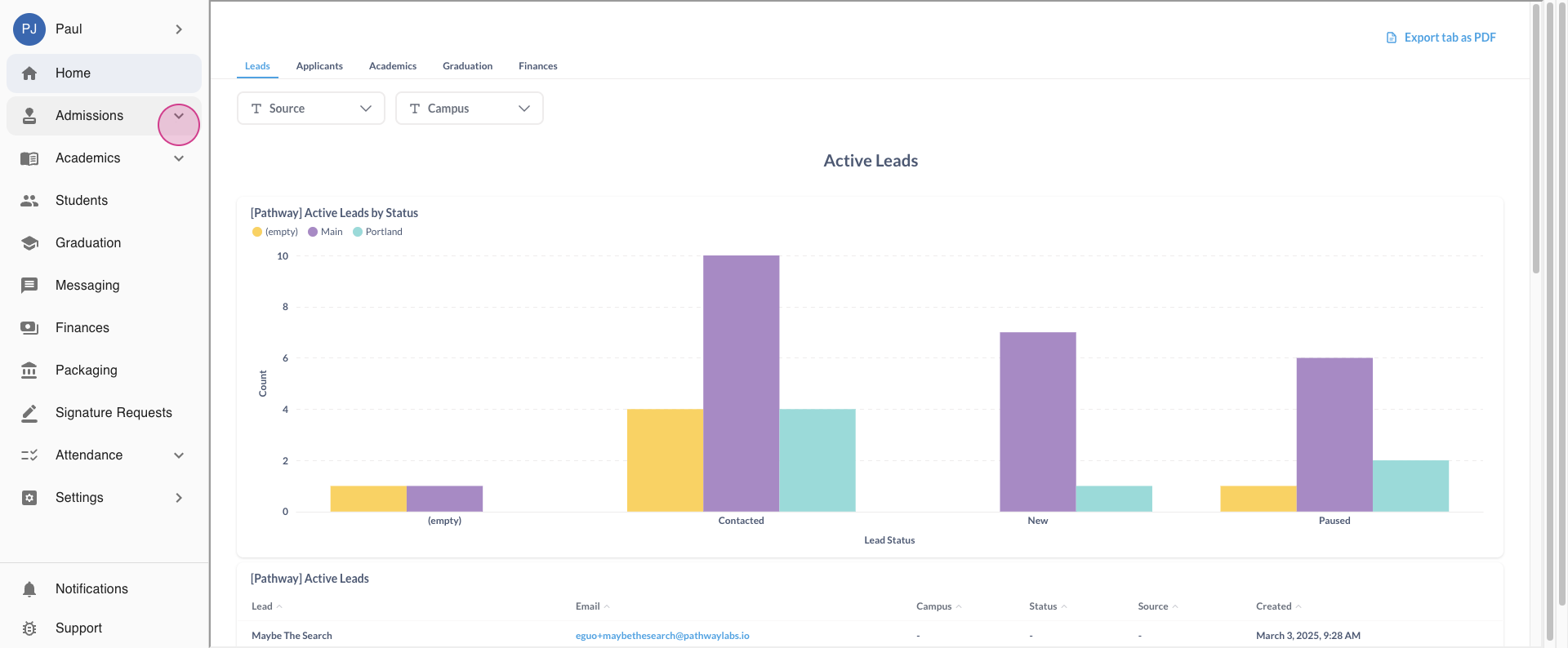
Step 3: Click on the Admissions tab, then select the Applicants module.
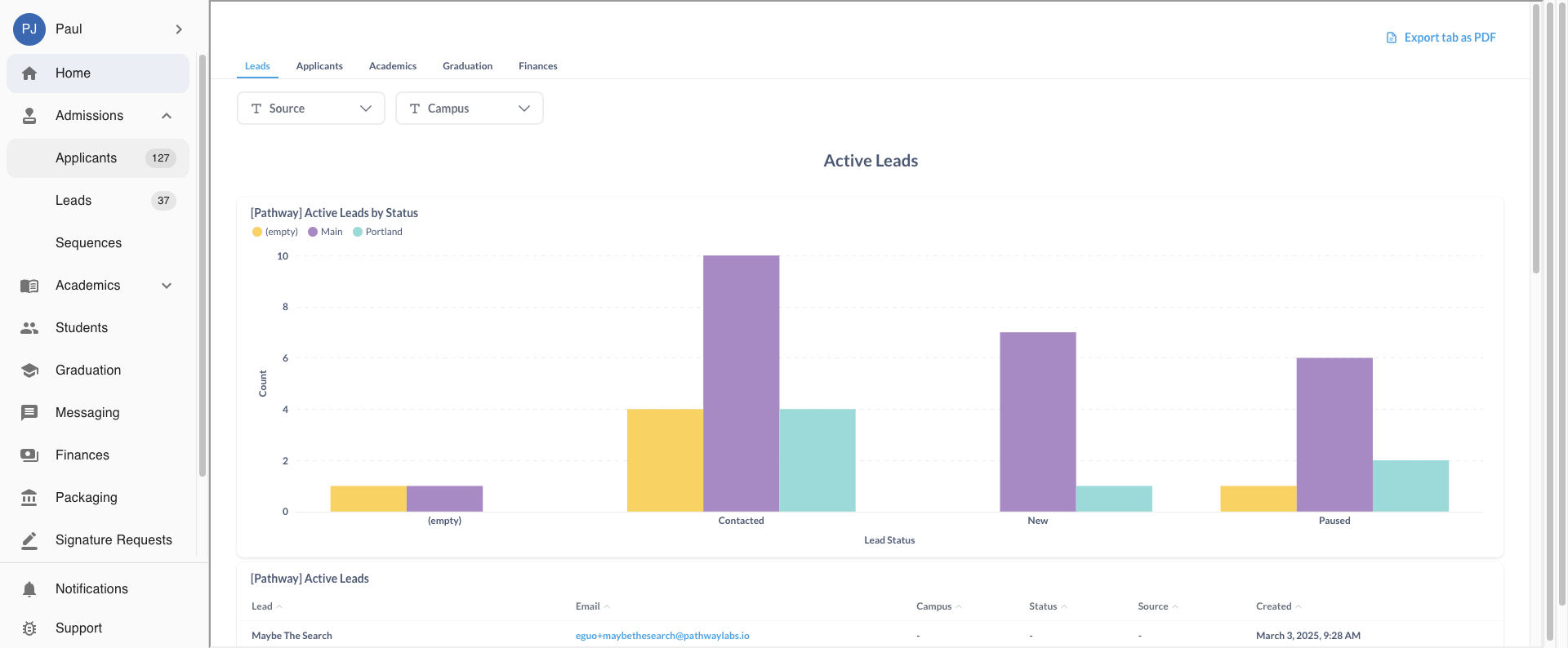
Step 4: You'll see a list of students. For this tutorial, we're focusing on Larry David. Click on Larry David's student profile.
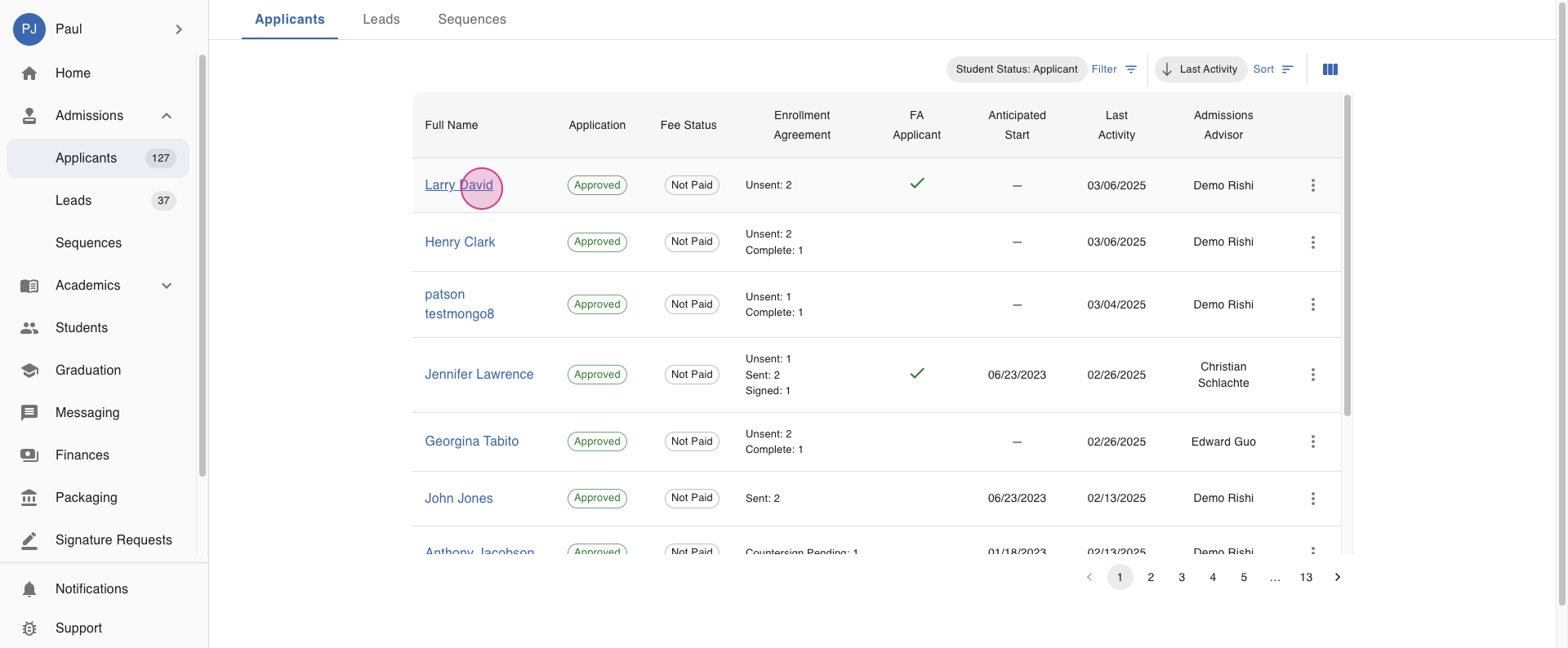
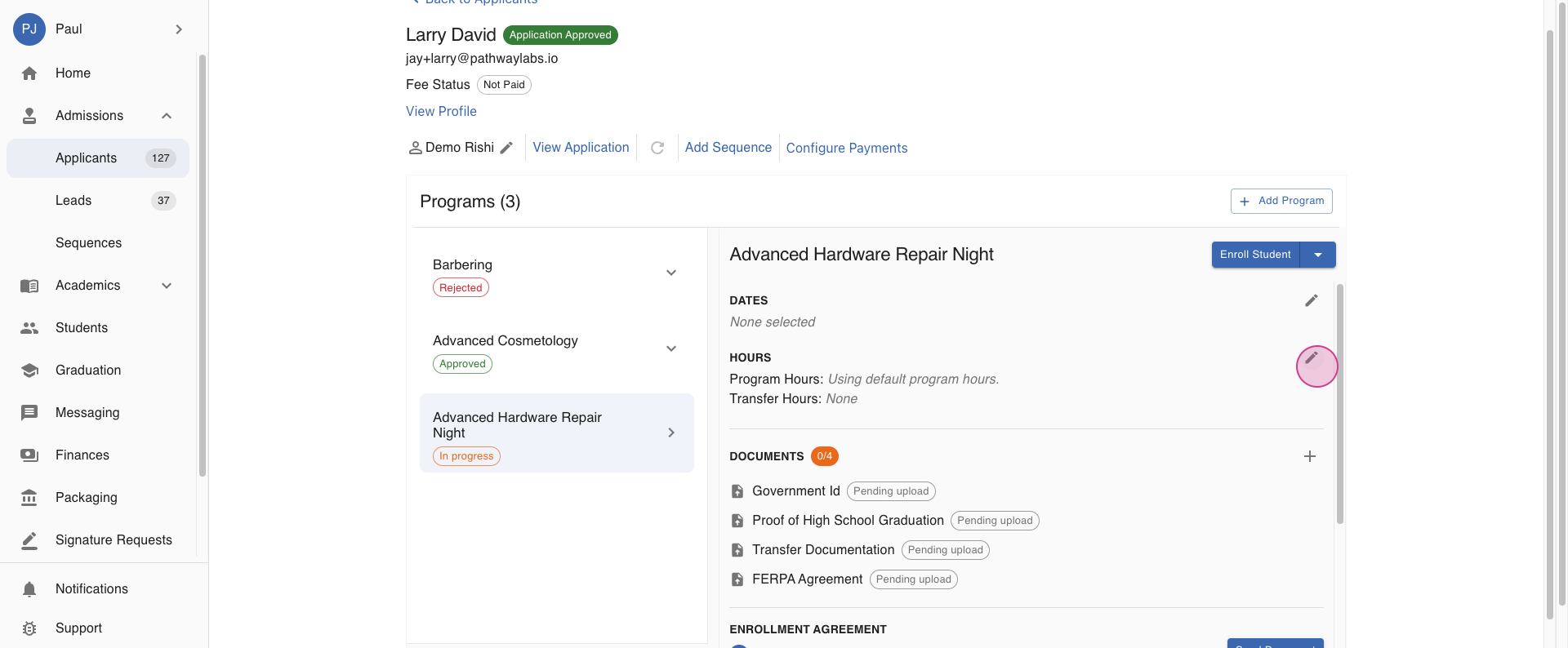
Step 5: In Larry's profile, you'll see the programs he's applied for. Note that adding or editing transfer hours is only possible for programs in progress, not for approved ones. Let's look at his program of Advanced Hardware Repair Night.
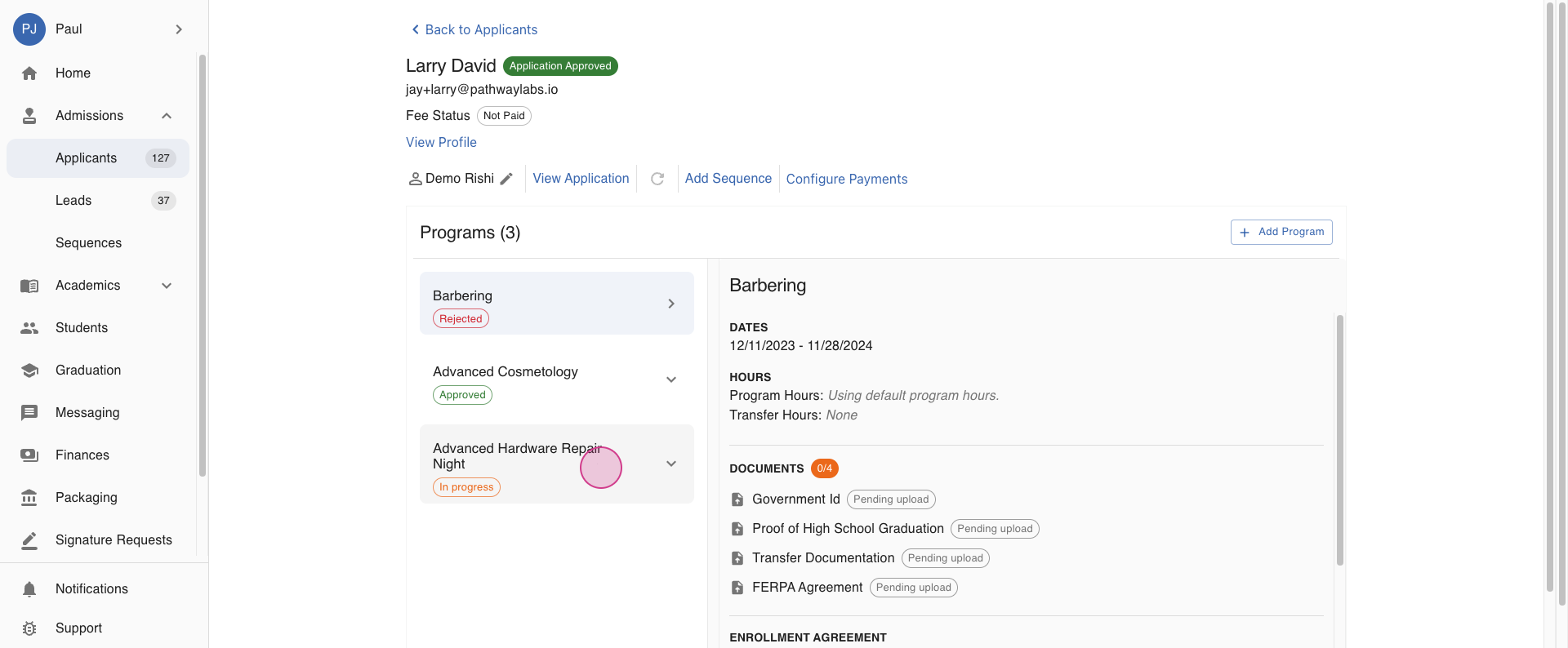
Step 6: In the first box, you'll find hours divided into program hours and transfer hours. Click the pencil icon on the far right to edit.
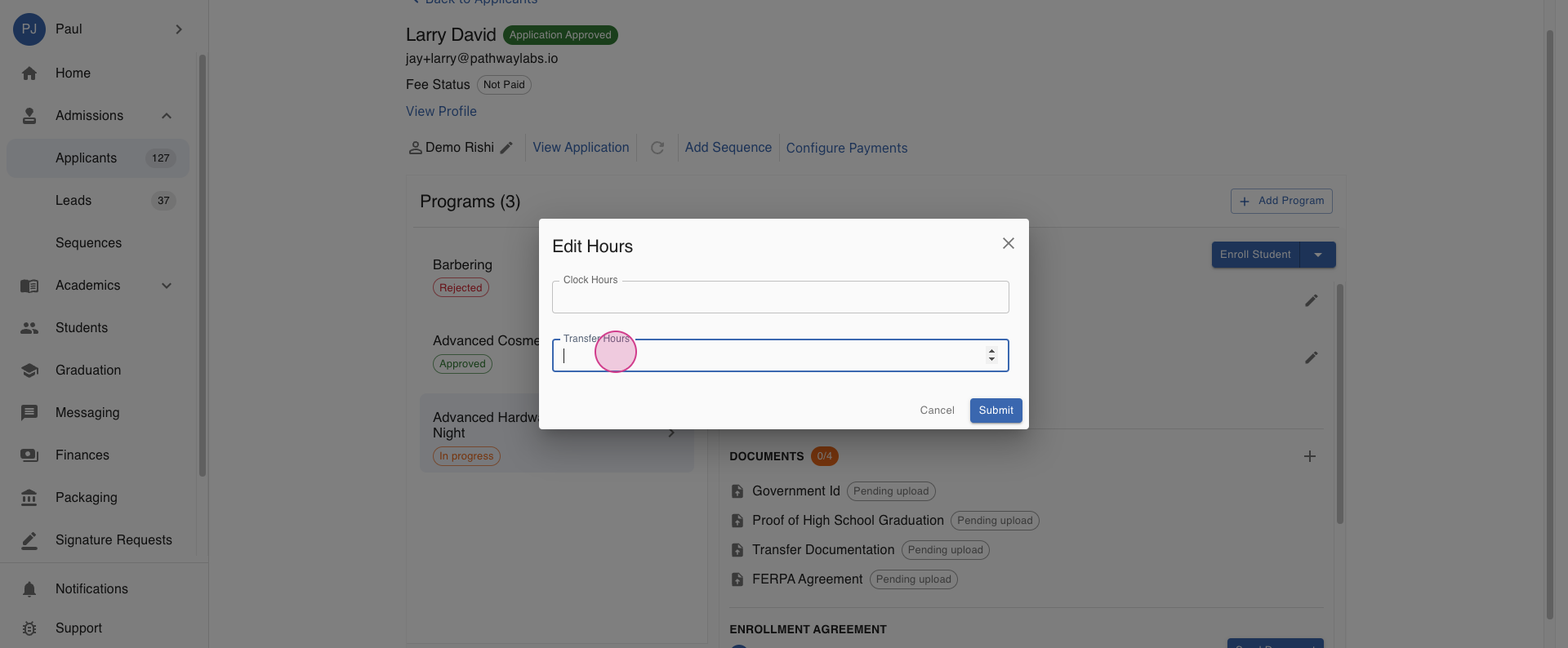
Step 7: An editing window will pop up. Here, enter the number of transfer hours Larry is accepting.
Step 8: You'll be asked to provide the institute's name and a short description. After filling in these details, click Submit.
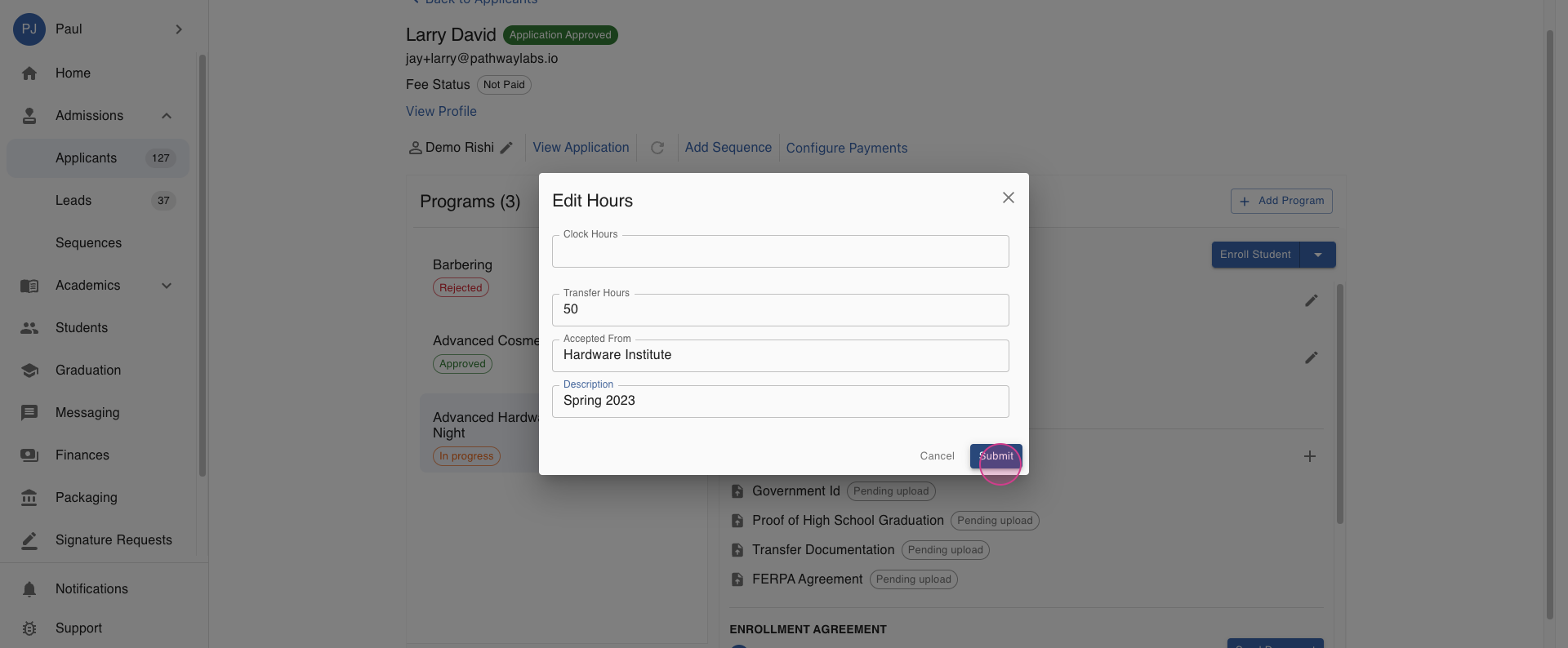
Great! You've successfully updated the transfer hours for Larry's program. Now, let's move on to the second method.
Step 9: Go back to the home screen.
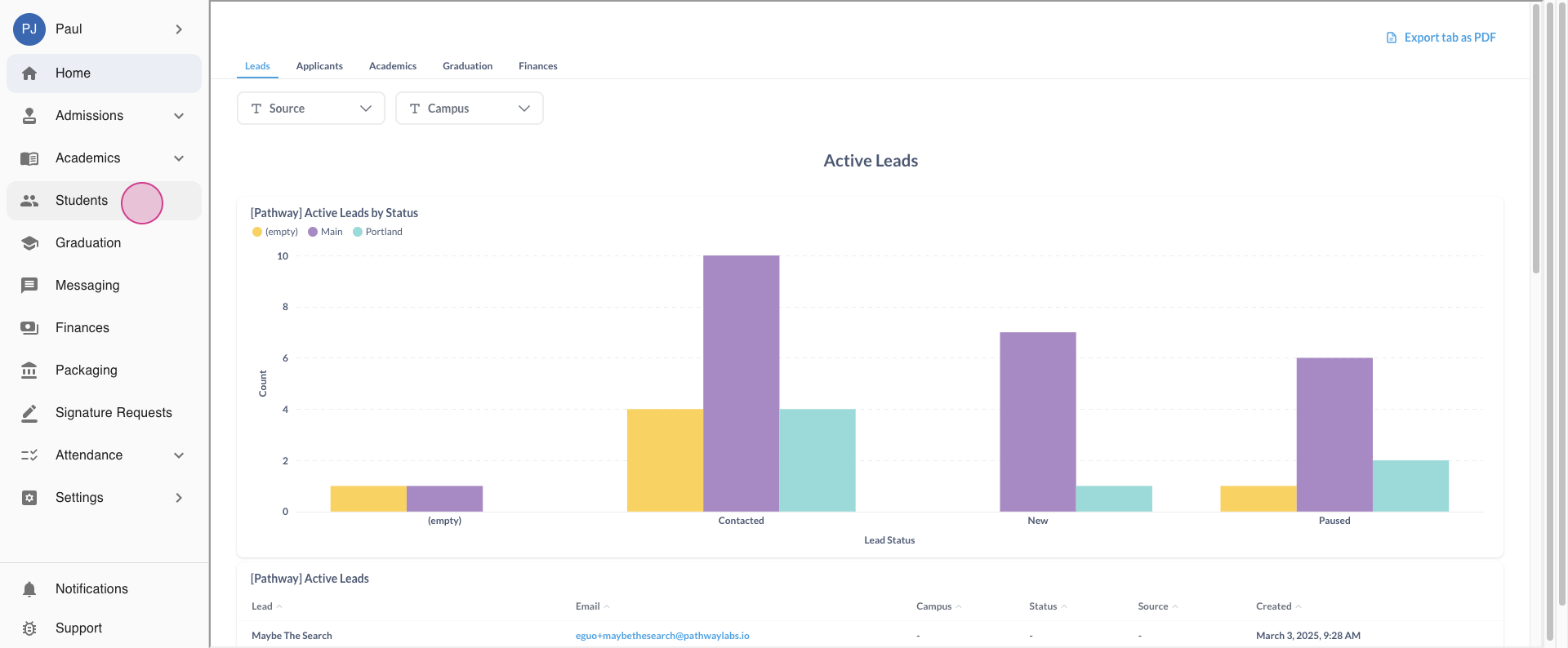
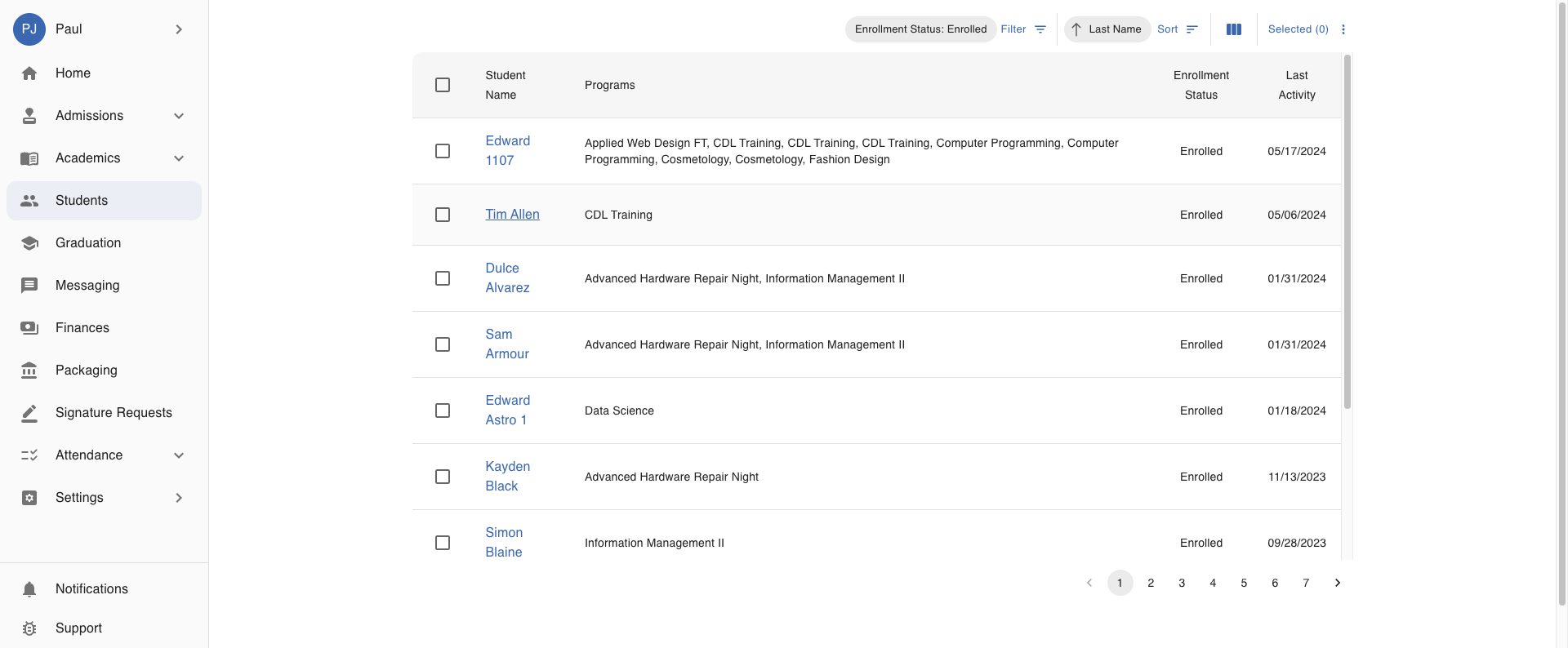
Step 10: This time, go directly to the Students module from the left-hand navigation menu.
Step 11: Find the student you're looking for. In this case, we're focusing on Tim Allen, who's enrolled in the CDL training program.
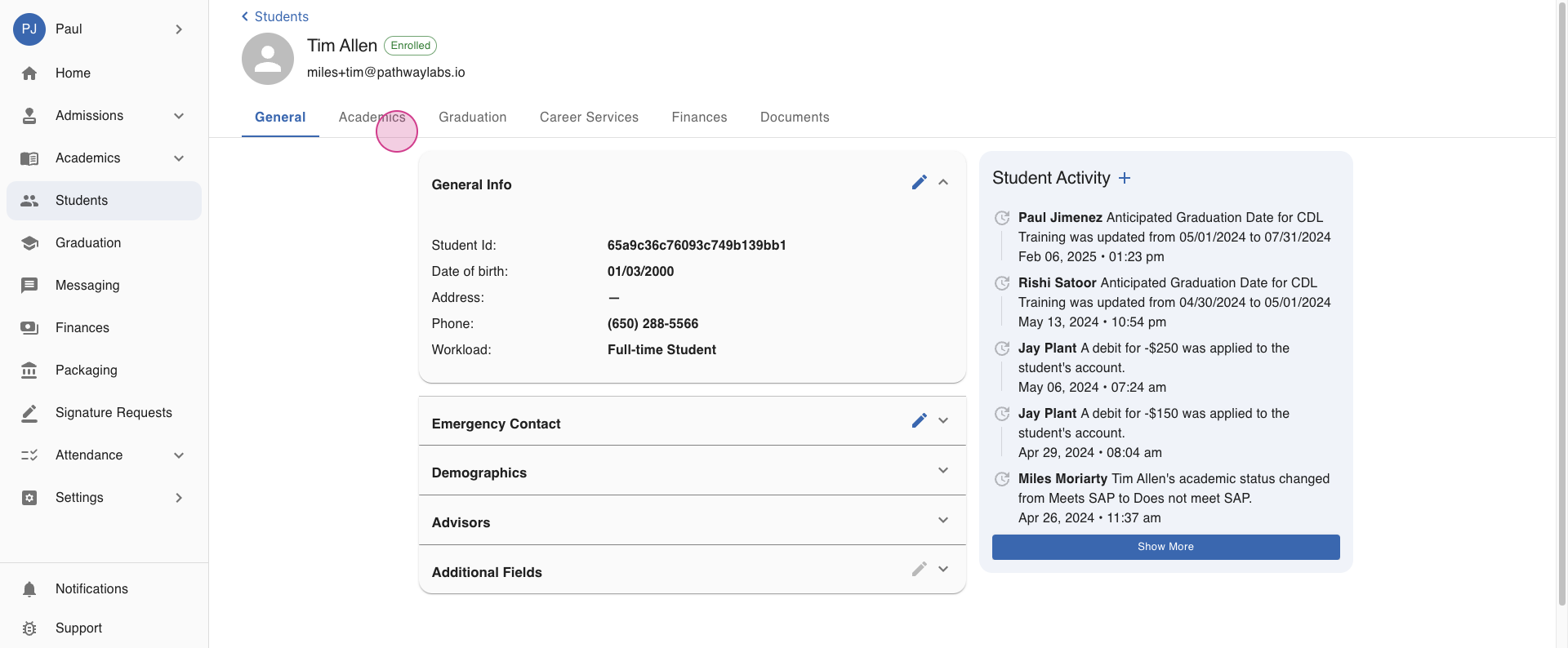
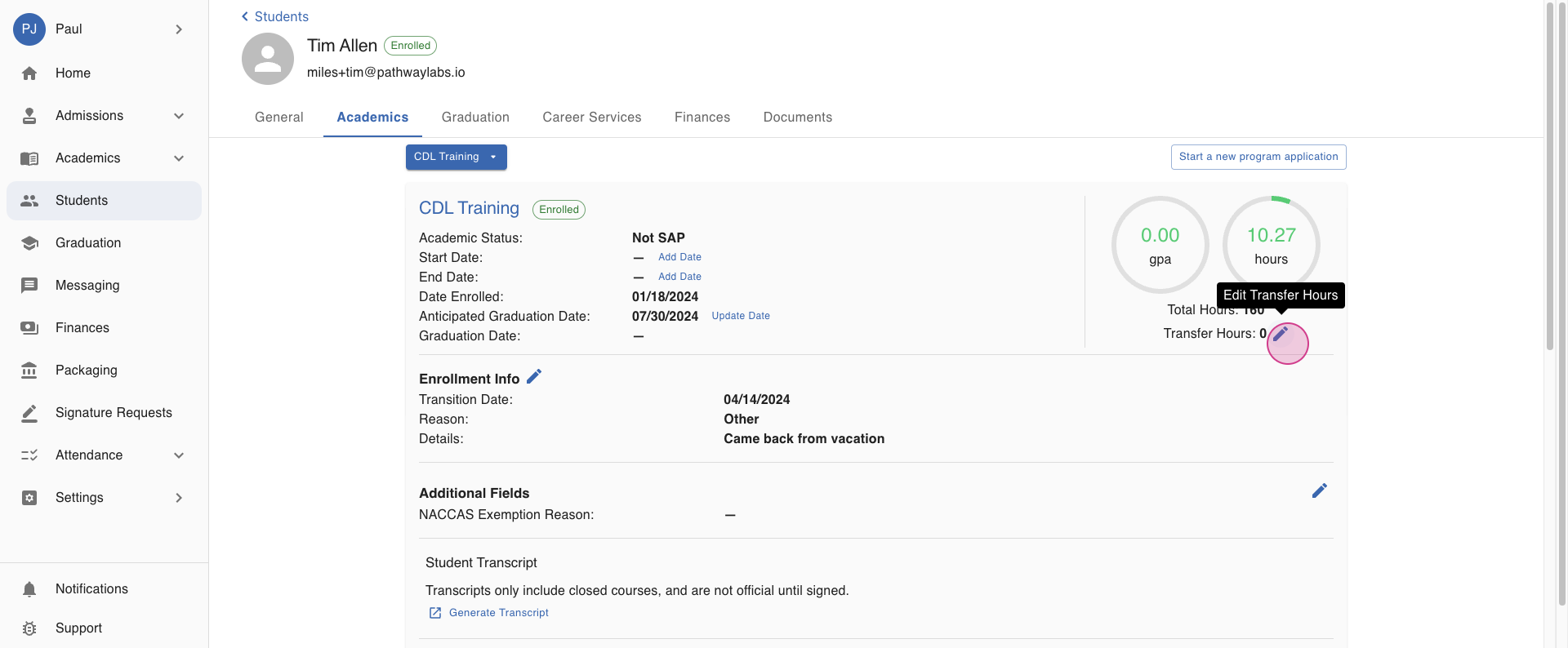
Step 12: Click on the Academics tab in Tim's profile. On the far right, you'll see a tracker for the hours Tim has accumulated so far.
Step 13: Click the pencil icon to edit the transfer hours.
Step 14: The same editing window will appear. Enter the number of hours Tim has, the institute's name, and a short description.
Step 15: Click Submit to update Tim's hours tracker.
That's it! You've now learned two ways to add and edit transfer hours for students in MyPath. If you have any questions, don't hesitate to reach out to your customer success representative.
FAQs
Q: Can I edit transfer hours for a program that's already been approved?
A: No, you can only add or edit transfer hours for programs that are currently in progress.
Q: Can I add transfer hours from multiple institutes?
A: Yes, you can add transfer hours from different institutes. Just make sure to provide the name and a short description for each institute.
Q: What happens if I don't click Submit after editing the transfer hours?
A: If you don't click Submit, your changes won't be saved. Always make sure to click Submit after making any changes.
Created on